It's interesting how many blogs, articles and whitepapers are out there regarding document management on SharePoint. But there aren't really that many articles touching on real-life experience with implementing this for larger organisations (let me know if you find any good ones).
In my experience, implementing SharePoint for DM comes down to addressing three key areas, and the following is a summary of experience/best-practice that has been implemented in a number of larger organisations - including some very well respected law firms (and we all know that they are demanding when it comes to DM). These key areas are:
1) Structure
2) Extending
3) Surfacing
STRUCTURE
DM on SharePoint, like any other DM solution, requires some planning to ensure that the long-term document volumes are well supported. The solution must therefore be designed at max future capacity (uncommon) or designed to scale to future capacity requirements (more common).
SharePoint has the unfortunate reputation of not being able to cope with volume. This is simply a misconception. My guess is that many have thought that SharePoint out of the box would magically know how to structure millions of documents in a navigable and scalable structure. It doesn't and some work is required for you to get it right. But it's not rocket science.
For a recent client - a large law firm (and off-spring from a global top 5 law firm) - we implemented our best practice and we can comfortably claim that scaling to around 10TB is possible without issues (all things being equal and all sorts of other caveats).
The best practice (shown for a law firm here) is simply:
[web app root site collection]
/clients [managed path]
.../[Client Site Collection]
....../[logical sub site]
............/[matter/case/project document library]
............/[matter/case/project document library]
............/[matter/case/project document library]
............/[matter/case/project document library]
....../[logical sub site]
............/[matter/case/project document library]
............/[matter/case/project document library]
............/[matter/case/project document library]
............/[matter/case/project document library]
.../[Client Site Collection]
.../[Client Site Collection]
.../[Client Site Collection]
The structure above sub-divides the overall structure into neat and manageable containers (Site Collections, Sites and Document Libraries).
Importantly, it breaks up the document volume across Site Collections, which then allows you to limit the size of content databases, by associating Site Collections to different content databases. The actual physical storage limit of a Site Collection / Content database varies depend on who you ask. Typically from 50GB to a few hundred GB (we have tested 400GB successfully) per Content Database is generally accepted.
EXTENDING
There are some gaps in SharePoint that you will want to address... We tend to address most of them with a great SharePoint Add-On (WISDOM DMF Pro) from our excellent partners in Australia, MacroView.
Unique Document Numbering
I.e. a document may have a unique ID in a Document Library, but this same ID will most certainly exist for another document in another Document Library. One of the features that we get with DMF Pro is a central feature to provision such unique IDs on saving a document into a library.
Document Reference
The feature above is enhanced further, by also allowing DM administrators to set their own variables for a document reference. E.g. "[Doc ID] - [Project Number] - [Client Number ] - [Title]" which is saved into the document properties.... Excellent for document footers I tell you ;-)
Provisioning
A DM is rarely a stand-alone app, so extending SharePoint and providing web-services for automated provision of areas (site collections, sites and document libraries). Commonly we see this used by accounting, crm or "Practice Management Systems" during the workflow of creating clients or client projects/matter.
Permissions
It goes without saying that some areas (sensitive matters/projects etc) need tight security and in my experience, providing an efficient way of doing this reduces the risk of this task being "forgotten". We have had good results from providing a simple interface (web service) for automated lock-down of areas. I.e. a workflow, or other can, during the provisioning process, fire off a request to lock down a site or document library to specific AD users or groups.
There are a few more details .... but enough for now... over to surfacing.
SURFACING
It ain't going to be a success if your users don't like using it. I tend to use the term "surfacing" to cover everything that we do to "surface" SharePoint to the desktop. I.e. any desktop client apps, office plug-ins etc. The key is to make it as intuitive as possible for the user to use SharePoint as their DM repository. Here again we use the WISDOM DMF (Pro) Add-on for SharePoint which allows us to give the users a consistent experience across Word, Excel, PowerPoint and Outlook, in addition to Adobe Reader/Acrobat. So all the save to / open from is handled neatly. Searching for documents on SharePoint is available straight from the plug-in. Drag & drop in Outlook for email management and lots more. All out of the box.
Right that's it for now.... I might add a bit more detail to this article. But feel free to comment/ask questions ....
24 March 2009


22 March 2009
Those SharePoint alerts are just filling up our inboxes
How often have we heard this complaint from IT Managers with enough to worry about already. SharePoint is a great tool, and alerts are really useful, but the reality is that they get overused and therefore very quickly ignored.
Result: loads of alerts are filling up users' inboxes, and they are either just being left there, or they get deleted by the users without ever getting read.
And hey, how about coming back from vacation and finding your inbox jammed with irrelevant notifications?
We were asked - about 6 month ago - to develop a little "instant message" alerting mechanism for a client. As soon as we heard about it we thought this sounded like a neat little idea. Another client happened to complain that same week about their FD sending global emails with massive attachments. His messages really belonged to a SharePoint announcement list, but they were reluctant to start alerting users even more than they did already via SharePoint.
Two weeks after I was discussing how to use SharePoint for contingency planning, and the topic of notifications came up again. The organisation really wanted to use SharePoint as a primary location for contingency information, and as the primary mechanism to distribute information. Long story short, email is a great mechanism, but not fast enough, and what if email servers are down. So as a primary distribution mechanism, how about something that broadcasts directly to the users from SharePoint.
Right that was it. We just had to get to it, and CorpCast was underway.....
CorpCast was built as a "stand-alone" communication tool, i.e. it does not require Office Communication Server, Exchange or other. Just SharePoint standard edition, and a port to broadcast on.
We released CorpCast about one month ago, and are getting some great feedback at the moment (thanks to everyone who have been providing this feedback).
Let me quickly summarise how CorpCast works:
A SharePoint feature allows Site Owners to configure CorpCast notification alerts on any list. CorpCast can be configured to notify individual users or groups, and can be set to trigger notifications on Add, Update or Delete events on the list.

So, when a new item is added to a list the event is caught by CorpCast, and it passes a message to the "CorpCast Server Service", which in turn broadcasts the notification to all listening CorpCast clients.
On the client a little light weight application is installed to the Windows notification area, and displays the notification with the "toaster effect" on the users desktop. When the user clicks on it, it closes and the user is taken straight into the relevant item on SharePoint.
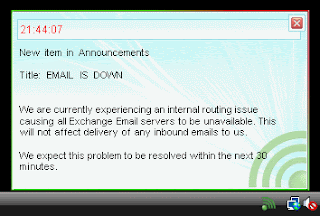
So, the feedback we have had since is that this is great for:
- contigency planning
- reducing email alerts filling up Outlook
- pulling users into specific areas of SharePoint (i.e. this is a great tool to encourage people to visit a newly published intranet page)
- support / helpdesk lists, to instantly notify the helpdesk team.
- etc
(keep the feedback coming, and tell us how you are using CorpCast)
We have uploaded latest version of CorpCast here: www.clearpeople.com/corpcast
You can download a free - fully functional - 45 day trial.
Also -here is a One Minute Demo... not the most impressive video editing skills (I admit it), but should give you enough to get going on (and I promise I will record/edit something better soon):
Result: loads of alerts are filling up users' inboxes, and they are either just being left there, or they get deleted by the users without ever getting read.
And hey, how about coming back from vacation and finding your inbox jammed with irrelevant notifications?
We were asked - about 6 month ago - to develop a little "instant message" alerting mechanism for a client. As soon as we heard about it we thought this sounded like a neat little idea. Another client happened to complain that same week about their FD sending global emails with massive attachments. His messages really belonged to a SharePoint announcement list, but they were reluctant to start alerting users even more than they did already via SharePoint.
Two weeks after I was discussing how to use SharePoint for contingency planning, and the topic of notifications came up again. The organisation really wanted to use SharePoint as a primary location for contingency information, and as the primary mechanism to distribute information. Long story short, email is a great mechanism, but not fast enough, and what if email servers are down. So as a primary distribution mechanism, how about something that broadcasts directly to the users from SharePoint.
Right that was it. We just had to get to it, and CorpCast was underway.....
CorpCast was built as a "stand-alone" communication tool, i.e. it does not require Office Communication Server, Exchange or other. Just SharePoint standard edition, and a port to broadcast on.
We released CorpCast about one month ago, and are getting some great feedback at the moment (thanks to everyone who have been providing this feedback).
Let me quickly summarise how CorpCast works:
A SharePoint feature allows Site Owners to configure CorpCast notification alerts on any list. CorpCast can be configured to notify individual users or groups, and can be set to trigger notifications on Add, Update or Delete events on the list.

So, when a new item is added to a list the event is caught by CorpCast, and it passes a message to the "CorpCast Server Service", which in turn broadcasts the notification to all listening CorpCast clients.
On the client a little light weight application is installed to the Windows notification area, and displays the notification with the "toaster effect" on the users desktop. When the user clicks on it, it closes and the user is taken straight into the relevant item on SharePoint.

So, the feedback we have had since is that this is great for:
- contigency planning
- reducing email alerts filling up Outlook
- pulling users into specific areas of SharePoint (i.e. this is a great tool to encourage people to visit a newly published intranet page)
- support / helpdesk lists, to instantly notify the helpdesk team.
- etc
(keep the feedback coming, and tell us how you are using CorpCast)
We have uploaded latest version of CorpCast here: www.clearpeople.com/corpcast
You can download a free - fully functional - 45 day trial.
Also -here is a One Minute Demo... not the most impressive video editing skills (I admit it), but should give you enough to get going on (and I promise I will record/edit something better soon):
Gabriel
03 March 2009
Microsoft discloses plans for FAST ESP
Came across an interesting article on plans for the new SharePoint.
Summary
FAST Search for SharePointThe SharePoint flavor will see the light together with SharePoint 14 (which will probably be early 2010).
Read more on:
http://www.cmswatch.com/Trends/1498-Microsoft-discloses-plans-for-FAST-ESP
Summary
FAST Search for SharePointThe SharePoint flavor will see the light together with SharePoint 14 (which will probably be early 2010).
Read more on:
http://www.cmswatch.com/Trends/1498-Microsoft-discloses-plans-for-FAST-ESP
13 November 2008
Unique Document Numbering in SharePoint
As organisations consider using Microsoft SharePoint to manage their documents they ask whether SharePoint can provide the features of 'traditional' document management systems, such as the ability to assign a unique Document ID to each document or file as it is saved. While not provided by 'out-of-the-box' Microsoft SharePoint 2007, unique document numbering can be handled very well on the Microsoft SharePoint platform. An easy way to achieve this capability is with the Unique Document Numbering module that is part of the WISDOM Document Management Framework developed by MacroView, and represented in the UK by ClearPeople.
MacroView’s Unique Document Numbering installs at the SharePoint server and automatically assigns the next available unique Document ID to each file as it is saved or uploaded to SharePoint. This Document ID can be configured to be unique across all the Site Collections in the organization's SharePoint environment. Numbering can also be configured to start from a certain point, which is very useful in situations where you are migrating to SharePoint from an existing DM system.
A related business requirement is that the unique Document IDs be visible in footers of documents that are retrieved from SharePoint. The MacroView Unique Document Numbering feature also helps out in this regard, by automatically setting a ‘Doc Reference’ property in Word, Excel and PowerPoint documents that are opened from SharePoint. The Doc Reference property can easily be incorporated in document footers and can be configured to reflect each organization’s standard usage. The default configuration is a combination of Unique Doc ID, current Version number and document library Title.
Neil Winter of the NSW Health Support Services in Sydney, Australia notes: “The MacroView Unique Document Numbering facility allowed us to have unique numbers assigned to controlled documents, which was a key in allowing us to move to SharePoint from a previous Document Management system.”
MacroView’s WISDOM DM Framework provides a range of other functionality that extends SharePoint so that matches the capability of traditional DM systems. This includes an intuitive tree-view display of the SharePoint environment, drag-and-drop to upload and move files, enhanced document level security, client-matter centric operation and excellent support for profiling (metadata capture). WISDOM preserves Unique Document IDs as it moves documents from one library to another within SharePoint.
MacroView’s Unique Document Numbering installs at the SharePoint server and automatically assigns the next available unique Document ID to each file as it is saved or uploaded to SharePoint. This Document ID can be configured to be unique across all the Site Collections in the organization's SharePoint environment. Numbering can also be configured to start from a certain point, which is very useful in situations where you are migrating to SharePoint from an existing DM system.
A related business requirement is that the unique Document IDs be visible in footers of documents that are retrieved from SharePoint. The MacroView Unique Document Numbering feature also helps out in this regard, by automatically setting a ‘Doc Reference’ property in Word, Excel and PowerPoint documents that are opened from SharePoint. The Doc Reference property can easily be incorporated in document footers and can be configured to reflect each organization’s standard usage. The default configuration is a combination of Unique Doc ID, current Version number and document library Title.
Neil Winter of the NSW Health Support Services in Sydney, Australia notes: “The MacroView Unique Document Numbering facility allowed us to have unique numbers assigned to controlled documents, which was a key in allowing us to move to SharePoint from a previous Document Management system.”
MacroView’s WISDOM DM Framework provides a range of other functionality that extends SharePoint so that matches the capability of traditional DM systems. This includes an intuitive tree-view display of the SharePoint environment, drag-and-drop to upload and move files, enhanced document level security, client-matter centric operation and excellent support for profiling (metadata capture). WISDOM preserves Unique Document IDs as it moves documents from one library to another within SharePoint.
18 September 2008
Document Management on SharePoint
The good news is that Microsoft SharePoint can be a very effective document management platform – popular with users, efficient in operation and able to handle very large volumes of documents. But it's not just a matter of deploying Microsoft Office SharePoint Server 2007. Indeed many organisations experience significant frustration with their attempts to use SharePoint for document management. This article looks at the common frustrations and misconceptions and how they can be overcome.
Interest in SharePoint for Document Management
At first glance, the idea of using SharePoint for document management appeals to many organisations. SharePoint 2007 has native document management capability – its document libraries can be used to store all types of files; SharePoint supports Check In / Check Out, Version History and Retention Policies. SharePoint document libraries can store additional classificatory or meta-data related to the files and provide an intuitive means of viewing and working with that meta-data. SharePoint offers Search functionality and of
course SharePoint is web-based, which opens up the prospect of simpler remote access to and sharing of documents and files with key clients and business partners.
News of these document management features in SharePoint is motivating many organisations to look to SharePoint as a way of improving on existing File Shares (e.g. G: or P: drive) for managing their documents and files.
SharePoint is relatively inexpensive; it has other potential applications beyond document management (such as maintaining the intranet and collaborating on project-related data) and SharePoint allows users to continue with the familiar approach of naming files and choosing a location for them as they are saved (which helps to reduce the cost of re-training staff who are accustomed to storing their files on File Shares).
These cost-of-ownership factors are even leading some organisations that have licenced a traditional DM system (such as Hummingbird DM or Interwoven Worksite) to consider whether they should be replacing their traditional Document Management systems with SharePoint.
A Common Mistake – Reproducing the Folder Hierarchy
SharePoint document libraries can contain Folders, and SharePoint 2007 supports a hierarchy of folders in a document library. This leads to a common mistake as organisations switch from their File Shares to SharePoint – they reproduce the folder tree structure that was present on the G: or P: drive with a
folder tree in a single SharePoint document library. Migrating existing documents is easy because SharePoint allows you to cut and paste from Explorer View or when a document library is opened in Internet Explorer.
However this approach of reproducing existing File Share folders with SharePoint folders leads to frustrations down the track with searching and volume handling. The names of folders cannot be used to refine a SharePoint Search. In order to take advantage of SharePoint’s capabilities a preferable approach is to make use of meta-data columns, which are defined at the document library (rather than folder) level. Storing large volumes of documents is best done with a tree of sites, rather than with a tree of folders in a single document library. For these reasons Folders are used sparingly in best practice SharePoint document management environments.
Key Weakness – Capturing Meta-Data for Email Messages
However SharePoint does a poor job in capturing the meta-data related to Outlook email messages. This is a common source of frustration for organizations as they make their first move to SharePoint-based document
management.
Email messages are a vital source of corporate knowledge and typically are stored in personal mailboxes and so not well managed from a corporate perspective. This is why many organisations identify the improved management of email messages as their initial application of SharePoint’s document management capability.
SharePoint 2007 does support ‘email enabled’ document libraries. Outgoing emails can be copied to SharePoint by including the address of the document library in the To, CC or BCC list. However with this approach, meta-data is not prompted for as the email is sent – indeed if any of the meta-data columns are
Required, the newly saved message will be left Checked-Out and so not visible to other users until the Sender or an Administrator edits the properties of the message file using the SharePoint web browser interface.
Organizations with Exchange 2007 can use Managed Folders. Saving an email message to a Managed Folder will trigger Exchange 2007 to send a copy of the message to a document library within the Records Center in a MOSS 2007 environment. However additional meta-data columns in these libraries will not be prompted for as the message is sent. Instead the user will receive an alert at a later time, reminding that meta-data is outstanding for multiple messages. By then the user may well need to open and read the message again to determine what meta-data to enter. This is not popular with users, as it increases the overall effort associated with saving the email message to SharePoint.
Third-Party Add-ons To Address this Weakness
Given the volume and potential importance of email messages it is not surprising that there are a number of after-market add-ons for SharePoint that improve the integration with Outlook and streamline saving of email messages to SharePoint, along with meta-data. These include products from Colligo, Knowledge Lake and MacroView.
WISDOM Message from MacroView runs in Outlook and captures meta-data in real-time as messages are saved to SharePoint. WISDOM Message allows a user to drag and drop to save email messages to favorite locations in
SharePoint. It also features excellent handling of attachments (on both incoming and outgoing messages) and avoids duplicates copies of email messages in SharePoint.
13 August 2008
Overview of SharePoint
We are constantly asked about how SharePoint can be used, so we thought we would provide a quick overview.
SharePoint is an integrated suite of applications that delivers, not just collaboration but also it has the ability to provide document management, content management of intranet, extranet and public websites, business intelligence and more. Investments are therefore limited to one integrated platform instead of several fragmented systems. The free Windows SharePoint Services 3.0 (which contains a subset of the functionality provided in the full SharePoint product) could even be considered when the requirements are limited and focus mainly on internal collaboration.
In ClearPeople’s experience, these are the following ways that companies may benefit from SharePoint:
Intranet
SharePoint provides a single point for employees to access information held on existing disparate systems. SharePoint provides a simple and familiar user experience to post internal news, weekly reports, memos and events. Employees can therefore easily add to the intranet without having to depend on IT staff.
Knowledge portal
SharePoint provides the right technological platform to capture, distribute and share knowledge. It allows entry points into the firm’s knowledge resources such as emails, useful links, colleagues’ profiles, blogs, tasks and documents. Out-of-the-box, SharePoint has many of the features required, but it can also be customised to the firm’s specific requirements. A big advantage is the tight integration with MS Office.
Document Management (DM)
SharePoint is an interesting value proposition since it does not require very specialised knowledge to implement and support. A few of the advanced DM features are not available in SharePoint but add-on components and the ability to customise SharePoint often fills the gaps.
Integration
SharePoint has an open, scalable, services-oriented architecture that provides support for standards like XML and SOAP. In non-technical jargon, this means that it is easier to integrate SharePoint with other applications. In addition, numerous IT solutions either use SharePoint as the document repository or allow for integration with web servers. This makes SharePoint an excellent platform for integrating the firm’s DMS, websites, practice management systems and more.
In summary, SharePoint has the capability to fulfill many requirements, it offers extensibility and provides the IT department with more control over business functionality. Furthermore, it reduces the costs of third party licensing and ongoing maintenance and support fees.
SharePoint is an integrated suite of applications that delivers, not just collaboration but also it has the ability to provide document management, content management of intranet, extranet and public websites, business intelligence and more. Investments are therefore limited to one integrated platform instead of several fragmented systems. The free Windows SharePoint Services 3.0 (which contains a subset of the functionality provided in the full SharePoint product) could even be considered when the requirements are limited and focus mainly on internal collaboration.
In ClearPeople’s experience, these are the following ways that companies may benefit from SharePoint:
Intranet
SharePoint provides a single point for employees to access information held on existing disparate systems. SharePoint provides a simple and familiar user experience to post internal news, weekly reports, memos and events. Employees can therefore easily add to the intranet without having to depend on IT staff.
Knowledge portal
SharePoint provides the right technological platform to capture, distribute and share knowledge. It allows entry points into the firm’s knowledge resources such as emails, useful links, colleagues’ profiles, blogs, tasks and documents. Out-of-the-box, SharePoint has many of the features required, but it can also be customised to the firm’s specific requirements. A big advantage is the tight integration with MS Office.
Document Management (DM)
SharePoint is an interesting value proposition since it does not require very specialised knowledge to implement and support. A few of the advanced DM features are not available in SharePoint but add-on components and the ability to customise SharePoint often fills the gaps.
Integration
SharePoint has an open, scalable, services-oriented architecture that provides support for standards like XML and SOAP. In non-technical jargon, this means that it is easier to integrate SharePoint with other applications. In addition, numerous IT solutions either use SharePoint as the document repository or allow for integration with web servers. This makes SharePoint an excellent platform for integrating the firm’s DMS, websites, practice management systems and more.
In summary, SharePoint has the capability to fulfill many requirements, it offers extensibility and provides the IT department with more control over business functionality. Furthermore, it reduces the costs of third party licensing and ongoing maintenance and support fees.
Subscribe to:
Posts (Atom)

 Posts
Posts

